 Tuck
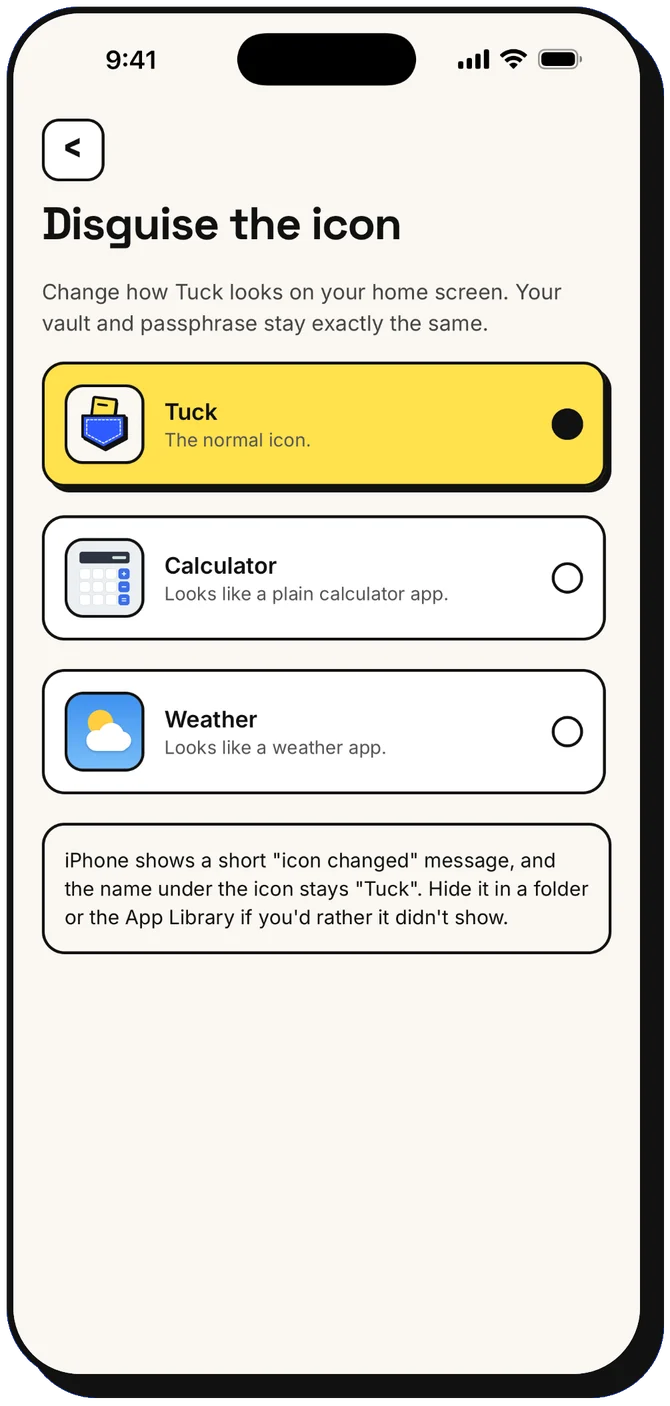
Sometimes the problem isn't that someone can open your vault. It's that they can see you have one. Tuck can swap its icon for a plain Calculator or Weather icon, so it looks like just another app on your home screen.
How to turn it on
- Open Tuck and go to Settings.
- Tap Disguise the icon.
- Pick Calculator or Weather.
Tuck still opens normally when you tap it, straight to its lock screen. Switch back to the Tuck icon any time.
A disguise plus real encryption
Calculator-style vault apps hide behind a fake calculator, and that's often all they do. Tuck treats the icon as the first layer, not the only one:
- Encrypted files. Every photo, video, note and document is encrypted with a key made from your passphrase.
- Its own lock. Passphrase, with Face ID or fingerprint for convenience.
- Slows down guessing. Wrong guesses make you wait longer each time.
- Nothing in the app switcher. Tuck hides its contents when you leave.
| Tuck | Typical calculator vault app | |
|---|---|---|
| Looks like | Calculator or Weather icon | A working calculator |
| Opens to | Tuck's lock screen | Calculator; the code opens the vault |
| Encryption named | Yes, XChaCha20-Poly1305 and Argon2id | Often not |
| Ads | None | Often |
Want the full comparison? See Tuck vs calculator vault apps.
FAQ
Can I make Tuck look like a calculator?
Yes. In Settings, tap Disguise the icon and choose Calculator or Weather.
Does the disguise icon work on Android and iPhone?
Yes, on both.
Does the disguised app's name change too?
The icon changes to a plain Calculator or Weather design. Check your home screen after switching to see how it appears on your phone.